Step 1 – Register
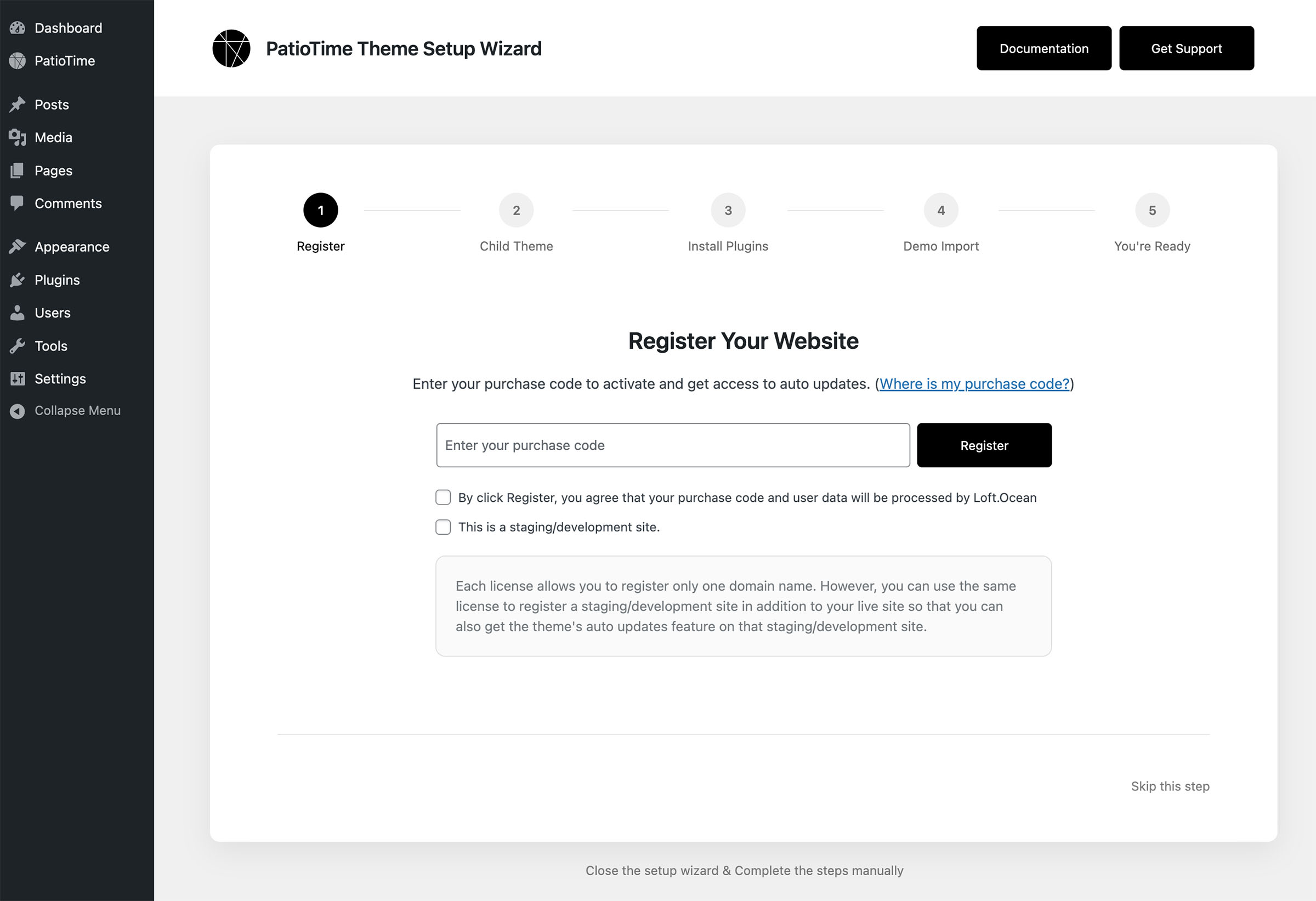
- Please enter the purchase code you received when you purchased this theme. (How to find the purchase code?)
- Tick the checkbox of “By click Register, you agree that your purchase code and user data will be processed by Loft.Ocean”.
- Click the “Register” button.
After successfully registering, you will be able to easily receive notifications and update the theme through your site dashboard when new versions of the theme are released in the future.
If you want to complete the registration later, you can click “skip this step” in the bottom right corner of the setup wizard. Once you’ve completed the steps and exited the setup wizard, you can always complete your registration by visiting the PatioTime dashboard > Register.
Step 2 – Install the Child Theme
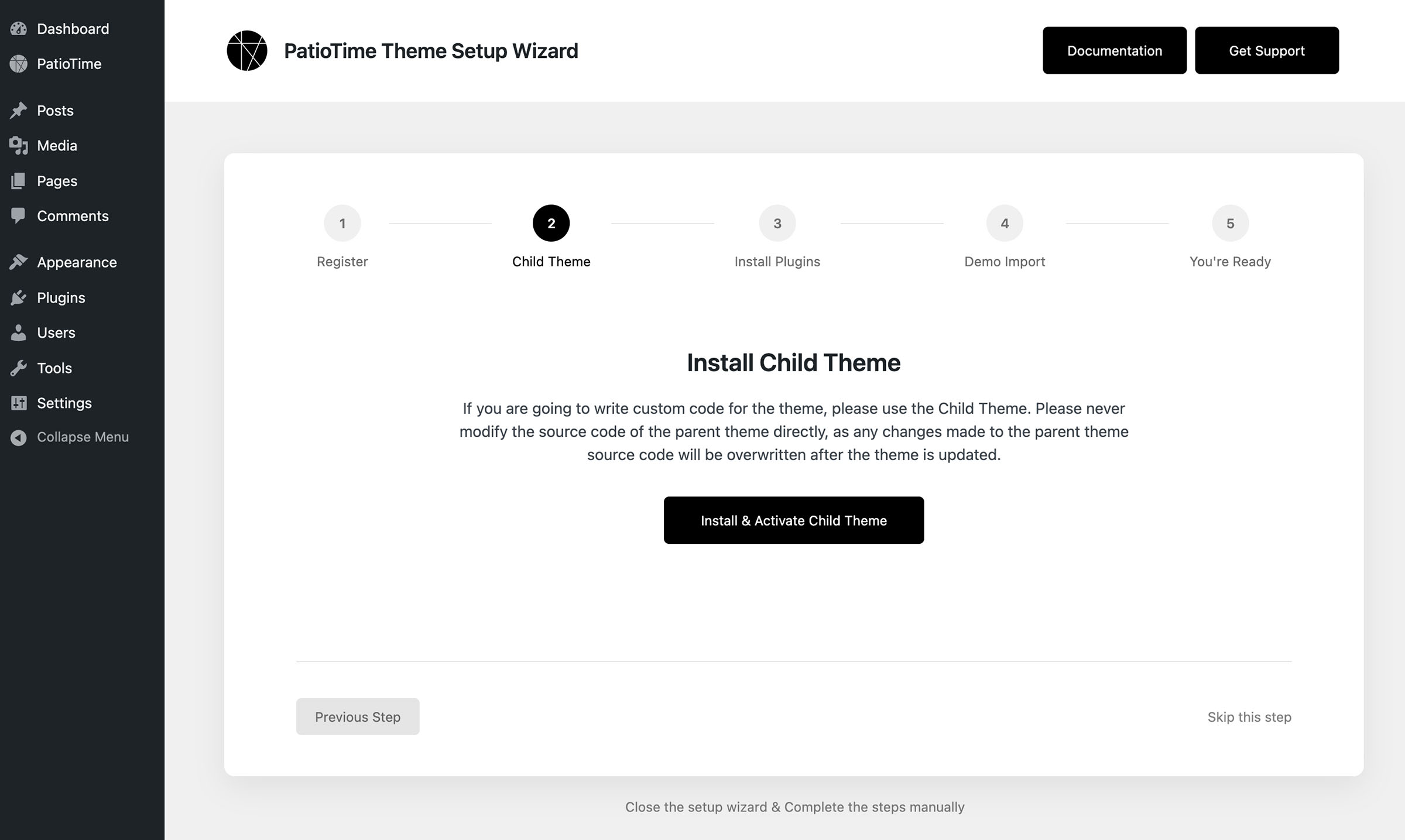
This step is optional. If you are going to write custom code for your theme, please click the button to install and activate the child theme.
A child theme inherits the functionality and styles of a parent theme. Any custom code added to the parent theme will be lost after the theme is updated. Installing and activating a child theme and then adding custom code to it is the recommended and safest way to write custom code for your theme.
More information can be found in this tutorial.
Step 3 – Install Plugins
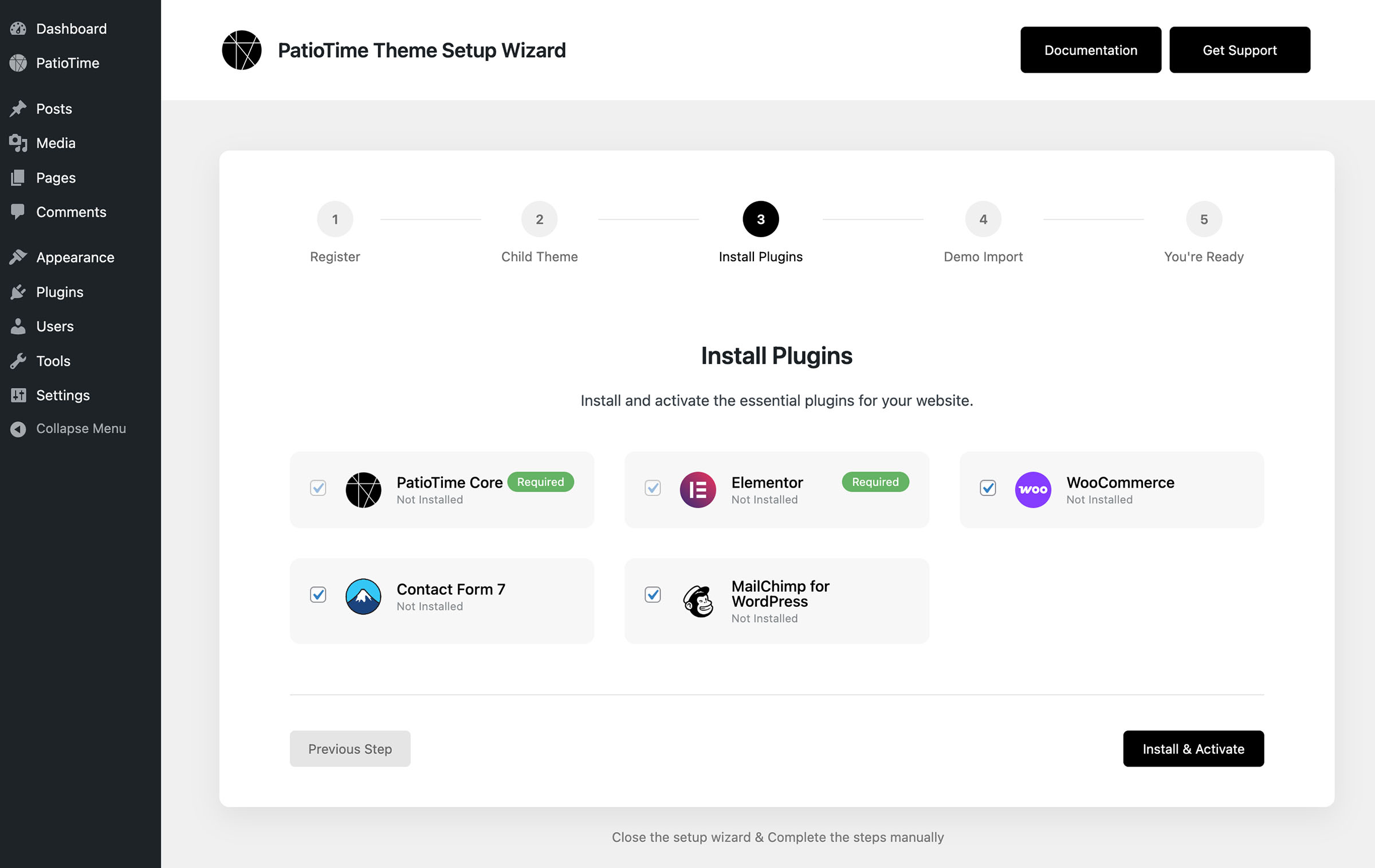
In this step, please install and activate these plugins for full functionality.
To import the complete demo data in the subsequent “Demo Import” step, we recommend installing all the plugins listed on this page. You can deactivate any plugins you don’t need after completing the installation process.
Step 4 – Demo Import
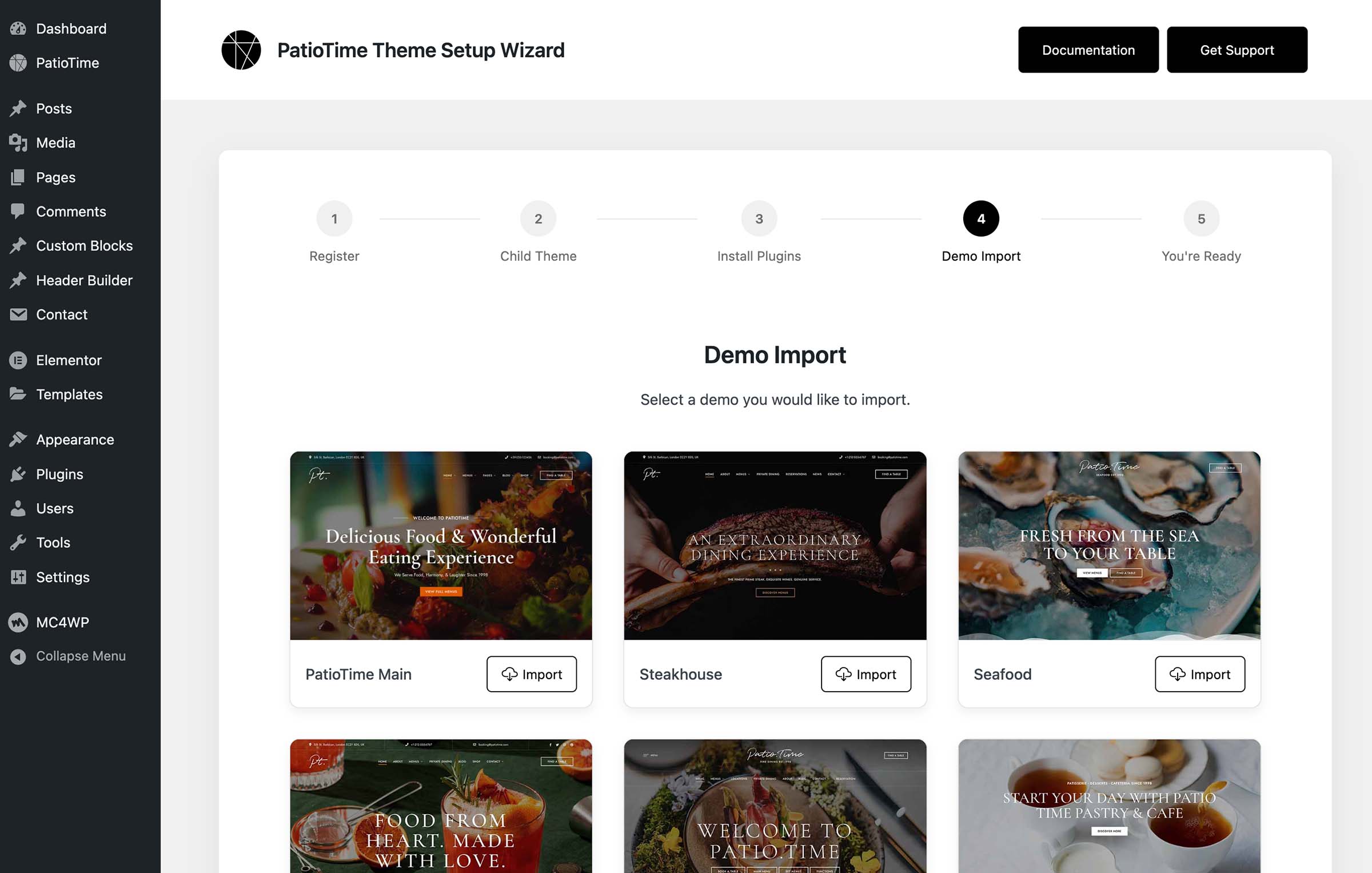
Simply installing and activating any WordPress theme will not automatically import any content into your site. This is how WordPress works.
When using the PatioTime theme, importing a demo is optional. This is for ease of getting started—when you install WordPress from scratch, you can import some dummy content and pre-designed layouts and styles into your website. You can then replace your own content and adjust some of the layout and colors.
You will see all available demos on this page. Select a demo and click the “Import” button. This may take several minutes, so please be patient and wait for the import to complete. Please do not exit or close the page or click any buttons or links during this process.
Please note: Do not import multiple demos into the same website, as this will create duplicate data.
If you encounter any issues while importing a demo, please contact our support team for further assistance. More details can be found in this tutorial.
Step 5 – Done
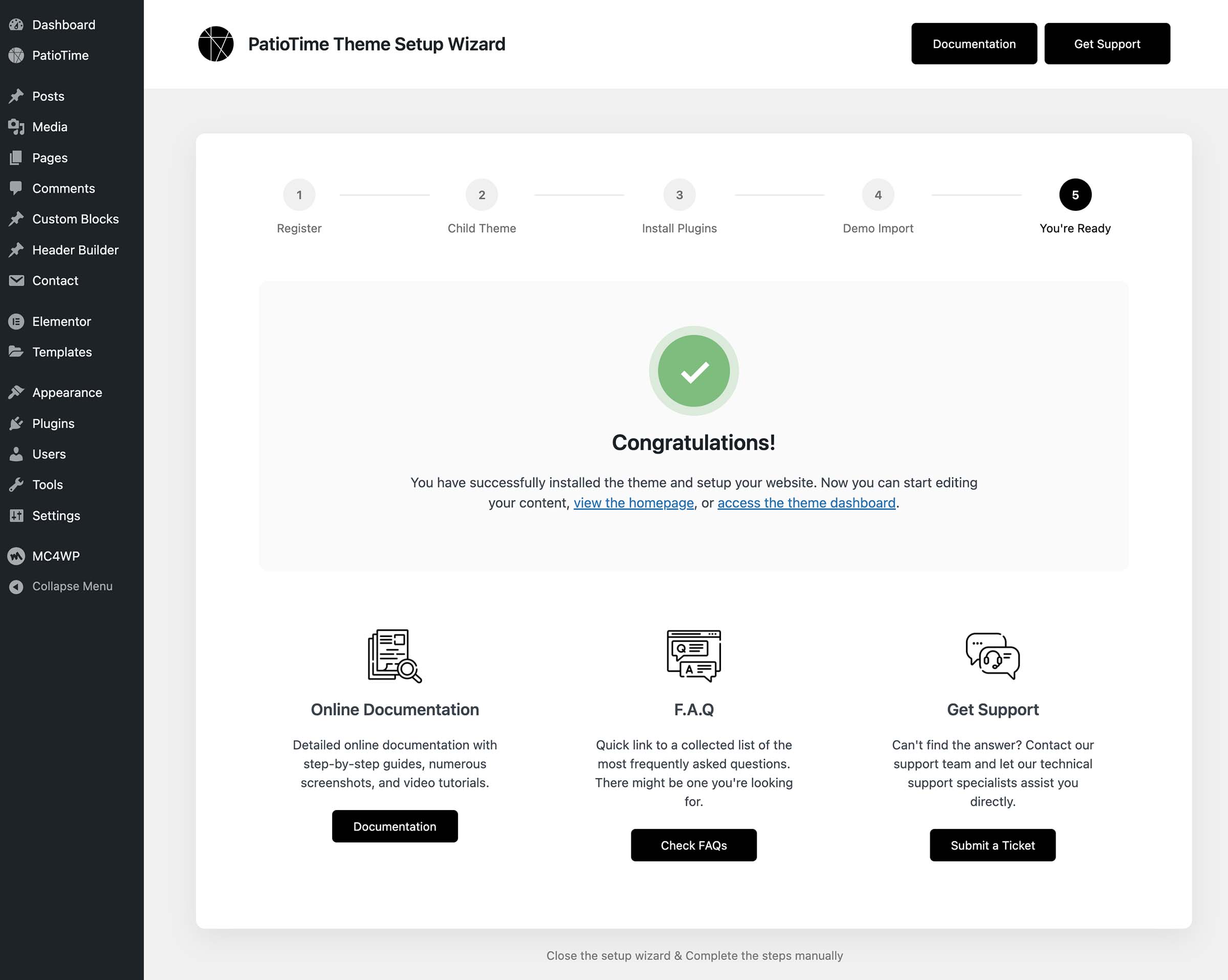
After you have imported the demo, all the steps in the setup wizard are complete. You can visit your site to see the results and add/replace your own content.
Manual Setup
What if you accidentally exit the installation wizard?
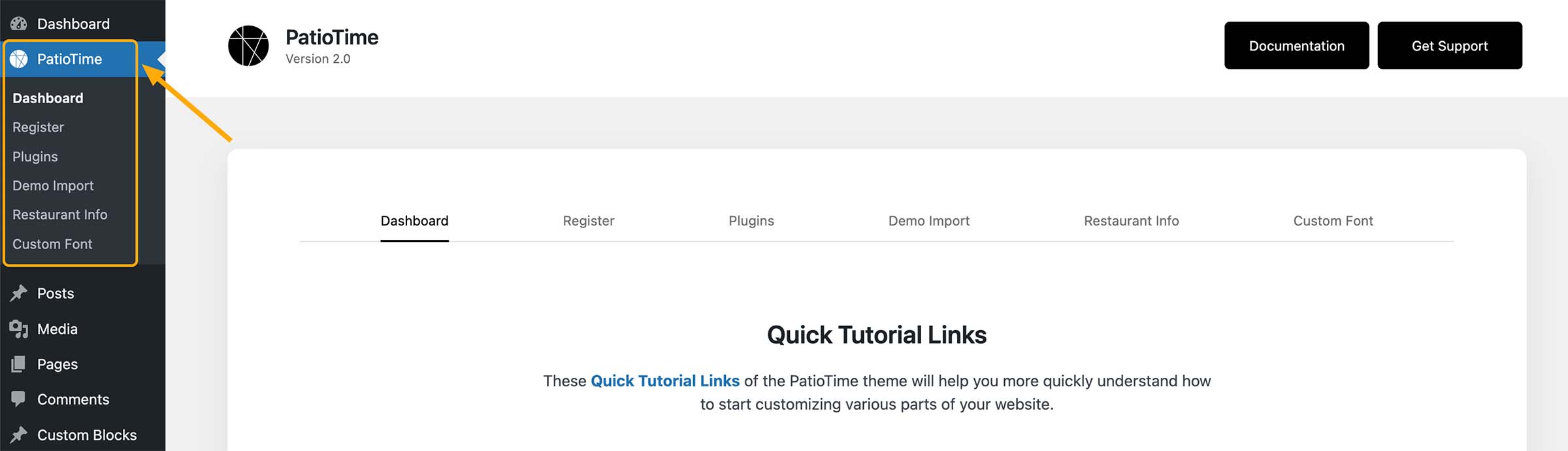
No worries. You can always complete the registration, plugin management, and demo import steps from your website dashboard by going to PatioTime > Dashboard.